 SendLit Docs
Organizations
Share delivery infrastructure across teams without sharing credentials.
Organizations sit above teams. They let a company or platform configure a mailbox once, then grant it to selected teams while keeping provider credentials out of those teams.
The model
User
└── Organization membership
    └── Organization
        ├── Shared mailboxes (organization-owned ESPs)
        └── Teams
            ├── Team members
            ├── Team-owned ESPs
            └── Optional grant to one shared mailbox
An organization is an administration and delivery-infrastructure boundary. A team remains the workspace boundary for contacts, broadcasts, sequences, templates, media, API keys, sending history, and team-owned ESPs.
This separation supports two common models:
- Managed delivery platforms such as CourseLit configure one shared mailbox and create a team for each school. Schools send through the platform's mailbox without ever seeing its credentials.
- Bring-your-own-ESP platforms such as FrontLit can give each customer team its own ESP while still using the organization to manage teams and integrations.
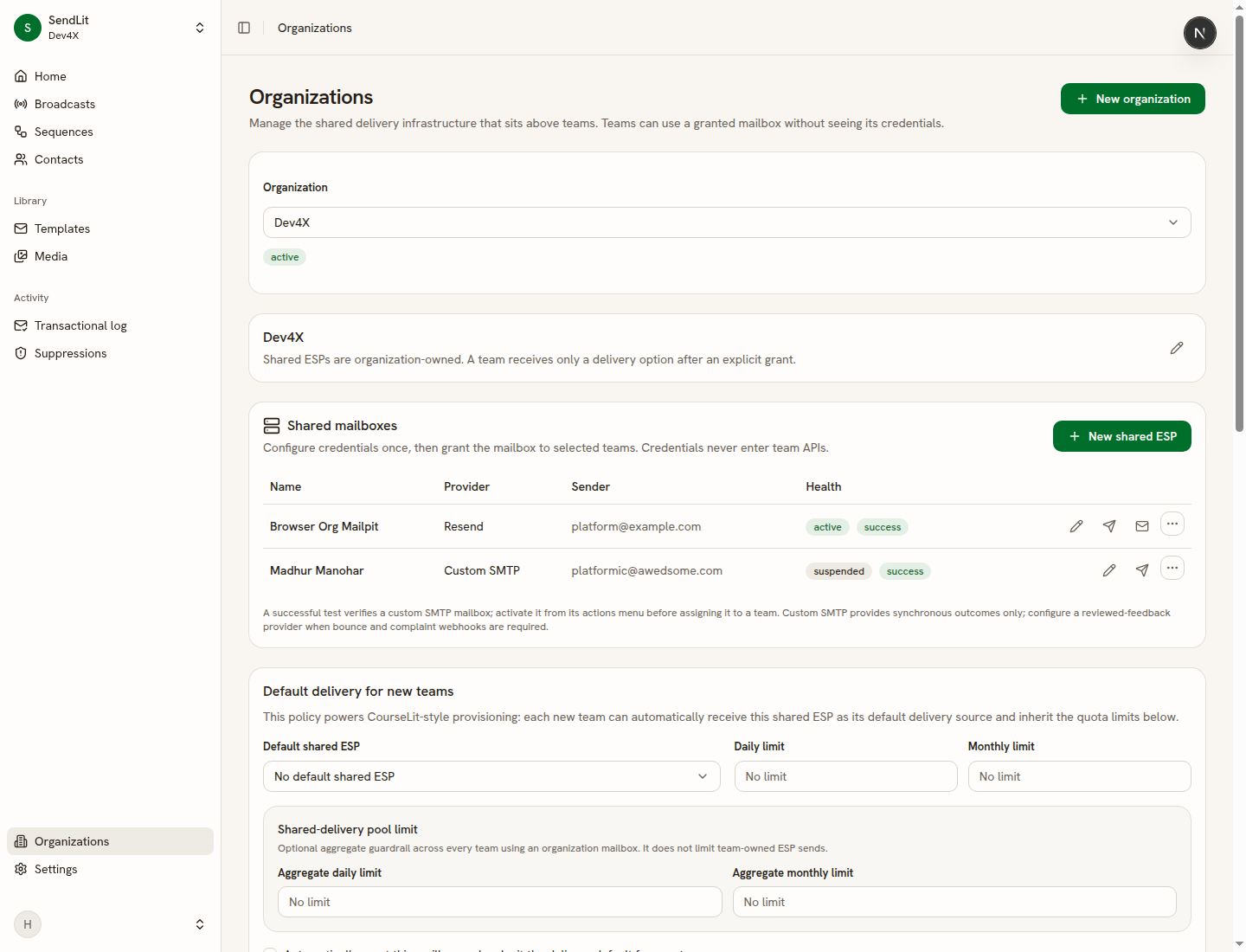
The Organizations page keeps the current organization in view, then splits administration into tabs: General (organization name), Delivery (shared mailboxes and default-delivery policy), Teams (grants and Enter team), Members, Activity (quota, transactional mail counts, and audit), and Keys.
Organization membership and team access
Organization membership and team membership are deliberately separate.
- An organization owner or administrator can manage shared mailboxes, delivery policy, grants, organization keys, and team lifecycle.
- An organization member can be part of the organization without gaining access to any team’s contacts or email content.
- A team member can work in that individual team. This is what makes a team appear in the sidebar team switcher.
The organization administration page lists every team because it is used to manage mailbox grants. The sidebar lists only active teams for which the signed-in user has an explicit team membership. Listing a team in one place is not an access grant in the other.
When an owner or administrator creates a team from Organizations, they are added to that new team as an administrator. A team created by an external provisioning integration has no human members by default, because it commonly represents a customer tenant rather than a workspace the platform operator should enter. Isolation remains the default: provisioning never adds organization owners or administrators to the tenant.
To inspect a provisioned team, an organization owner or administrator can
choose Enter team on the Teams tab. This creates a permanent
team administrator membership for that person, records team.entered in
organization audit activity, and makes the team appear in the sidebar switcher.
Organization members and organization API keys cannot enter a team. Archived
teams cannot be entered.
Transactional mail activity
The Transactional mail activity card on Organizations → Activity shows
organization totals and a per-team table of transactional mail counts (sent,
queued, failed, bounced) for the last 1, 3, 7, or 30 days (default 7).
Quiet teams still appear so provisioned tenants with no recent sends are
visible. These counts are transactional only; they do not include campaigns,
broadcasts, or sequences. Shared-delivery quota remains on Shared-delivery
usage. Recipients, subjects, and email bodies are not shown.
A team that is archived is removed from normal team switching and cannot send. Its operational history is retained.
Shared mailboxes
A shared mailbox is an organization-owned ESP configuration. Configure it in Organizations → Delivery. The mailbox’s provider connection, secret, health details, and feedback credentials stay at organization scope. Team APIs and team members receive only a safe delivery option and sender metadata—never the provider credentials.
Verify before using a mailbox
New mailboxes start as draft.
- Add the mailbox connection and sender email.
- Send a test email. Receiving the message verifies the connection and marks the test as successful.
- Open the mailbox actions menu and choose Activate.
Testing and activation are separate on purpose. A successful test proves that
the connection works; explicit activation makes the mailbox available for
organization delivery and grants. Editing connection details, credentials, or
the sender email returns an active mailbox to draft until it is tested again.
Use the mailbox actions menu to suspend, resume, retire, or delete an eligible mailbox. Suspending stops new sends without exposing its credentials. Retiring a mailbox also transitions the grants that depend on it, so teams are never silently switched to a different sender.
Custom SMTP can be verified and activated after a successful test. It provides synchronous SMTP outcomes only; configure a supported feedback connection when you need bounce and complaint webhooks.
Grant a mailbox to a team
On Organizations → Teams, each active team is a compact row. Open its actions menu and choose Mailbox grant settings to:
- select an active shared mailbox;
- set optional daily and monthly limits for that team; and
- make the shared mailbox the team’s default delivery source.
A team can have one active shared-mailbox grant. Granting a mailbox does not add any people to the team and does not reveal the mailbox configuration to the team. The team sees a selectable sending option such as its approved sender name and email address.
The grant itself can be suspended, resumed, drained, or revoked from the same settings dialog. A suspended or revoked grant cannot be used for new delivery.
Default delivery for new teams
The Default delivery for new teams policy is useful for managed platforms. Choose an active shared mailbox as the organization default, then optionally:
- automatically grant it and make it the default delivery source for new teams;
- apply default per-team daily and monthly limits;
- enforce an aggregate organization shared-delivery pool limit; and
- decide whether newly provisioned teams may add their own ESPs or change the delivery default.
These are defaults, not an implicit authorization bypass. A shared mailbox must be active, and a team must receive a same-organization grant before it can use that mailbox.
Provision teams from your platform
For a CourseLit-style integration, set up the organization once in the dashboard:
- Create or select the organization.
- Add, test, and activate a shared mailbox.
- Set the default-delivery policy and any quotas.
- Create an organization API key with the
teams:provisionscope. Store the secret in your platform’s server-side secret manager; it is shown once. - On each customer signup, your backend calls
POST /provisioning/teamswithAuthorization: Bearer <organization key>, a stableexternalId, and the team’s sender, delivery, and quota settings.
externalId makes provisioning idempotent within the organization. The first
successful response includes the team API key; store it encrypted if your
platform will send team-scoped transactional mail. Repeating the same request
returns the same team and never returns the original secret again.
The organization key determines the organization. Do not send an organization ID, owner email, or a shared provisioning secret as an authority signal. See Provisioning for the request shape and key rotation guidance.
Team-owned ESPs and future BYO delivery
Teams can still own their own ESPs. Whether a new provisioned team can add one or make it the default is controlled by the organization delivery policy.
This allows a managed platform to launch with shared delivery, then later let selected customers bring their own provider without moving their contacts, campaigns, sequences, or API integrations to a new team. Existing sends stay pinned to the delivery source selected when they were activated or queued.
Security checklist
- Keep organization API keys on a server; never put them in a browser or a customer tenant.
- Give people explicit team membership only where they need workspace access.
- Use organization roles for infrastructure administration, not as a shortcut to every team’s customer data.
- Test and explicitly activate a mailbox before assigning it to teams.
- Treat the one-time organization and team key responses as secrets; revoke and replace a key if it is lost or exposed.